Give Claude Access to Your Computer: Remote MCP Server Setup
Connect Claude (claude.ai, the desktop and phone apps, Claude Code) to your own PC or server with a remote MCP server, in three steps, with examples and safety rules.
By Sandeep Kumar Saini, founder of Shellway · Published 27 Nov 2026 · Updated 28 Nov 2026
Claude can write code, explain problems and plan projects, but by default it only sees what you paste into the chat. Give it access to your computer and it can read your actual files, run the scripts it writes and check the results, without you copying anything back and forth.
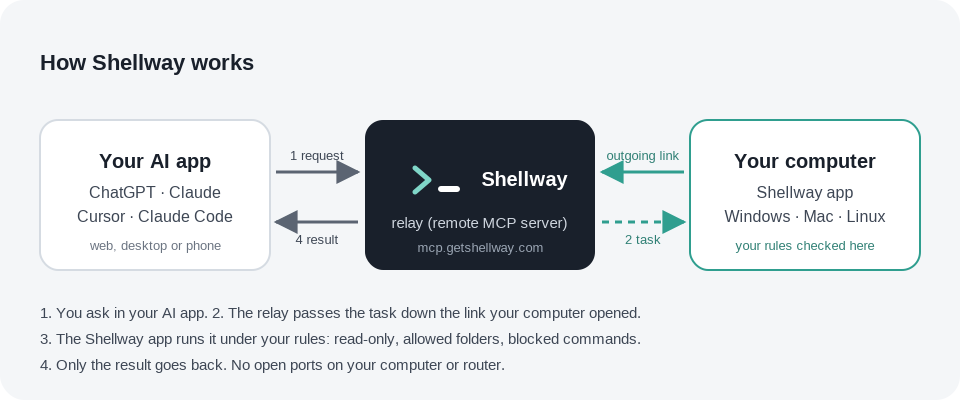
You do that with an MCP server. Most MCP guides show a local server: a program on the same computer where Claude Desktop or Claude Code runs. That is fine at your desk. It does not help when Claude is on claude.ai in a browser tab, in the Claude phone app, or on a laptop while your files are on a different machine.
A remote MCP server is a URL. Claude connects to the URL, and the work happens on the computer behind it. Shellway is a remote MCP server for your own Windows, Mac or Linux computer or server:
https://mcp.getshellway.com/mcpLocal vs remote MCP server
| Local MCP server | Remote MCP server (Shellway) | |
|---|---|---|
| Where Claude can use it | the app on the same machine | claude.ai, the Claude desktop and phone apps, Claude Code |
| Which computer it works on | the one running Claude | the computers you pair (home PC, office PC, server) |
| How you add it | a config entry on that machine | one connector URL |
| Network | stays on that machine | your computer connects outward; no open ports |
New to the idea? Read what is an MCP server.
What you need
- A Claude Pro, Max, Team or Enterprise plan (custom connectors), or Claude Code.
- A free Shellway account at mcp.getshellway.com/dashboard.
Step 1: install Shellway on the computer Claude should work on
In the dashboard choose Add computer, copy the one-line setup command and run it once on that computer: PowerShell on Windows, Terminal on Mac or Linux. It brings its own Node if the computer has none, needs no admin rights on Windows and says "paired" when done (if not, see pairing help). To start it automatically at login, run npx -y shellway@latest service install. The computer connects outward, so there is no port forwarding or VPN. For a Linux server, see the server guide.
Step 2: add the MCP server to Claude
On claude.ai (also used by the desktop and phone apps):
- Open Settings → Connectors and choose Add custom connector. This works on Claude Pro, Max, Team and Enterprise.
- Name it Shellway, paste
https://mcp.getshellway.com/mcpas the URL and choose Add. - Choose Connect, sign in to your Shellway account and allow access.
- In a chat, open the tools menu and switch Shellway on. It then also appears in the Claude desktop and phone apps.
In Claude Code, run this in a terminal:
claude mcp add --transport http shellway https://mcp.getshellway.com/mcpOr install the Shellway plugin from inside Claude Code. It adds the connector and a skill:
/plugin marketplace add sandeepkumar466/shellway-agent
/plugin install shellway@shellway
Claude Code opens a sign-in page once. Full steps with pictures: Shellway for Claude.
Step 3: ask Claude to work on that computer
- "List the computers paired to my account and which are online."
- "On my home PC, read the README in ~/code/my-app and tell me how to run it."
- "Look at the project in ~/code/my-app and tell me why the tests are failing."
- "Find all TODO comments in the code under ~/code/my-app."
- "Start the dev server in ~/code/my-app and tell me when it is ready." (dev server prompt)
- "Write a README for ~/code/my-app from the code." (README prompt)
- "On my server, check free disk space and show the 5 largest folders under /var/log."
With several computers paired, name the one you mean ("on my office PC…"). From your phone, the same works in the Claude app (Claude on your phone).
What the MCP server gives Claude
Tools to read, search and edit files, move and organise them, run commands, start programs that keep running (a dev server, a Python session or ssh) and read their output, list running processes, and list your paired computers. The work loop changes from "paste the error, copy the fix, run it, paste the output" to "describe the problem once": Claude reads the files itself, runs the fix and confirms the result. See the full tool list.
Keep it safe
The rules live on your computer, not in the chat, so Claude cannot change them:
npx shellway start --readonly              # read-only: look, never change
npx shellway policy allow ~/projects        # only this folder (repeat for more)
npx shellway policy block-deletes           # block delete commands
npx shellway policy commands off            # file tools only, no commands
npx shellway policy backups on              # back up every file before it changes
npx shellway policy show # see the current rules- Read-only mode is useful when you only want Claude to review code or diagnose a problem.
- Every action is logged in your dashboard; remove a computer there to cut access at once.
- Keep Claude away from untrusted files and web pages while it can run commands (prompt injection). More: safety rules.
Common questions
Does this work in the Claude phone app?
Yes. Add the connector once on claude.ai; it then shows up in the Claude apps for iPhone and Android, and the work happens on your paired computer.
Is Shellway the same as Claude's own computer use?
No. Shellway gives Claude file and terminal tools on computers you pair; it does not move your mouse or click on the screen. You choose the computers and the rules.
Can I use the same computers with ChatGPT?
Yes. The same Shellway account works in ChatGPT (ChatGPT guide), Cursor and Codex.
What does it cost?
New accounts get a 7-day free Pro trial without a card, then the free plan: 50 actions a day on 1 computer. Paid plans: Starter $5/month (₹499 in India, 1 computer), Pro $19/month (₹1,599, 3 computers) and Pro Max $49/month (₹4,199, 10 computers). See pricing.